Your DeepSeek Harness is an AI teammate that lives on your computer, You tell it what you want in normal everyday English through voice note or text prompting, and it goes off and writes the code, does the research, and puts the whole thing together for you. It literally does every task you ask it to do, whether on the web or on your computer.
So to get started, you have to download the DeepSeek application on your desktop. That is exactly what this page is all about; get the application downloaded, get your API key, do some setups, and plugin models.
So let’s get started.
Download DeepSeek Harness Desktop Application
DeepSeek Harness application is available for different OS; Windows, Mac, and Linux. Downloading it goes through one process, so follow the steps below:
The process is simple, but confusion sets in when you’re not familiar with the official page; when searched on Google for example, “DeepSeek” there are ads results with cloned DeepSeek pages that appears first on the search result page, You might go on to click any of it, then the confusion starts.
But to make it easier for you, we have provided the link here, all you have to do is click and follow the instructions to complete the process.
- Go to DeepSeek official website here. Please take note that the website you just visited is https://www.deepseek.com/en/
- Click on “Harness Desktop” to begin the download. The download page automatically detected my operating system as Windows. It should detect your system or you can select from the option if it doesn’t.
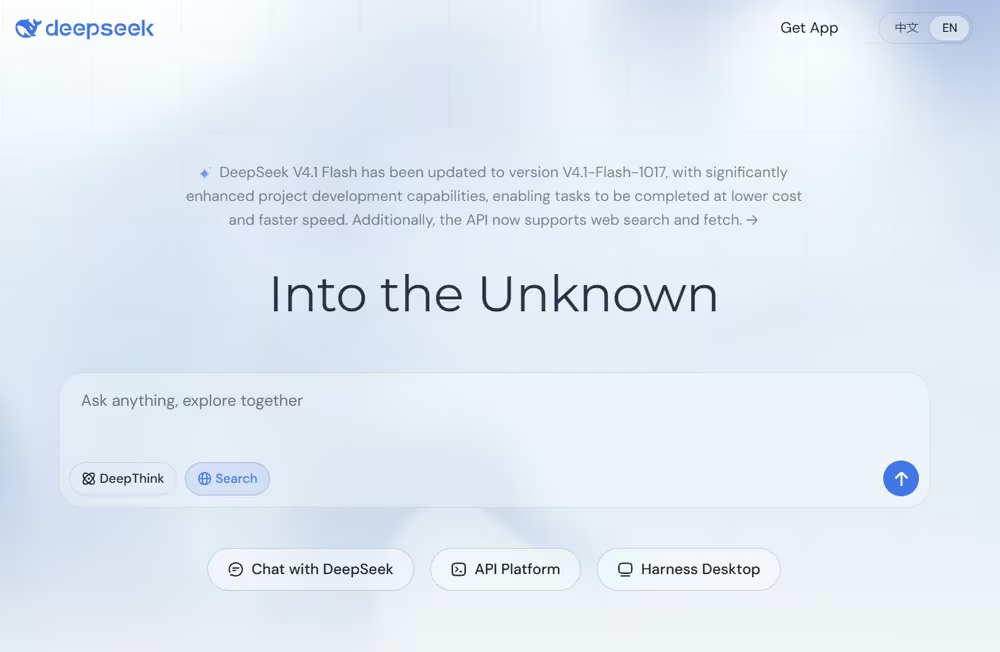
- Allow the download process to complete. You can access your DeepSeek downloaded application in your downloads folder, just like every other desktop app you’ve downloaded before.
Install DeepSeek Harness Desktop Application
Every operating Systems has its own ways of installing applications. Follow the same process to complete this process.
We have provided free guides on how to install Desktop applications on various Operative Systems, You can check it out if you are confused by any part this process then come back to this page to continue following the page guide to login and setup your DeepSeek Harness AI Desktop application.
How to Install Application on Windows Computers
How to Install Application on Mac Computers
How to Install Application on Linux Computers
Login DeepSeek Harness Desktop Application
After you’ve completed the installation, launch it if the app does not open after installation. You should see the page requesting that you Login or use API. All these processes have been explained, including why you may prefer to use either of the methods to login, because they are two different interfaces and functionalities.
Adding An API Key Instead
What is an API Key?
This is a key that allows an application communicate to other tools or applications. The Key is like granting access. It is necessary to always keep API keys secret and safe, because sometimes some API keys come with usage limits, and you want to ensure only you have access to them.
Now you understand what an API key means, you will be creating your DeepSeek API key using the steps below. Don’t worry, you will be returning back to the DeepSeek Harness App after creating the API Key.
Do you remember the official DeepSeek website you downloaded the application from?
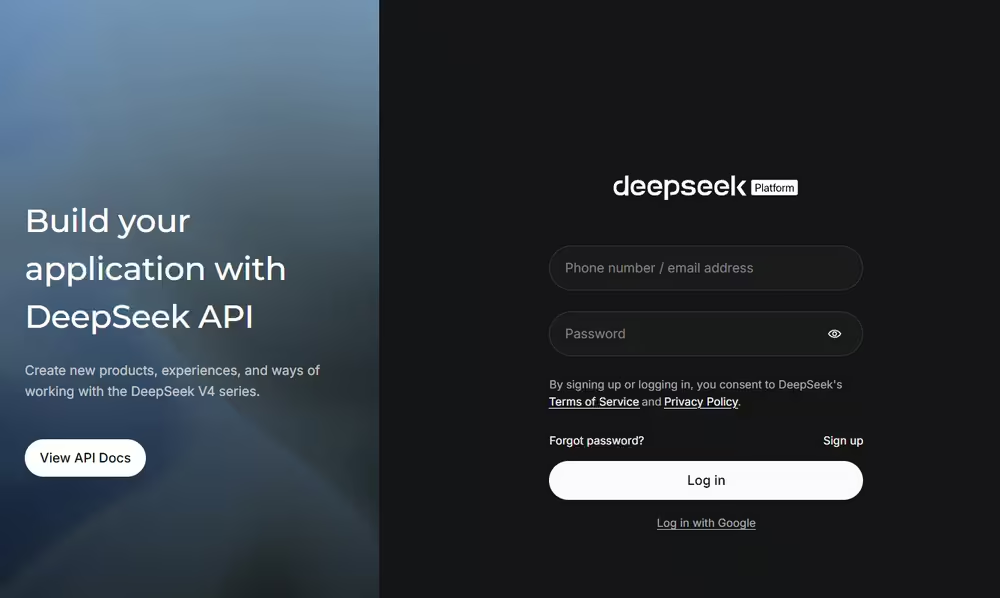
Yes, the button before the download button can redirect to the API page or better still go to https://platform.deepseek.com/sign_in, then login or create a new account if you haven’t before.
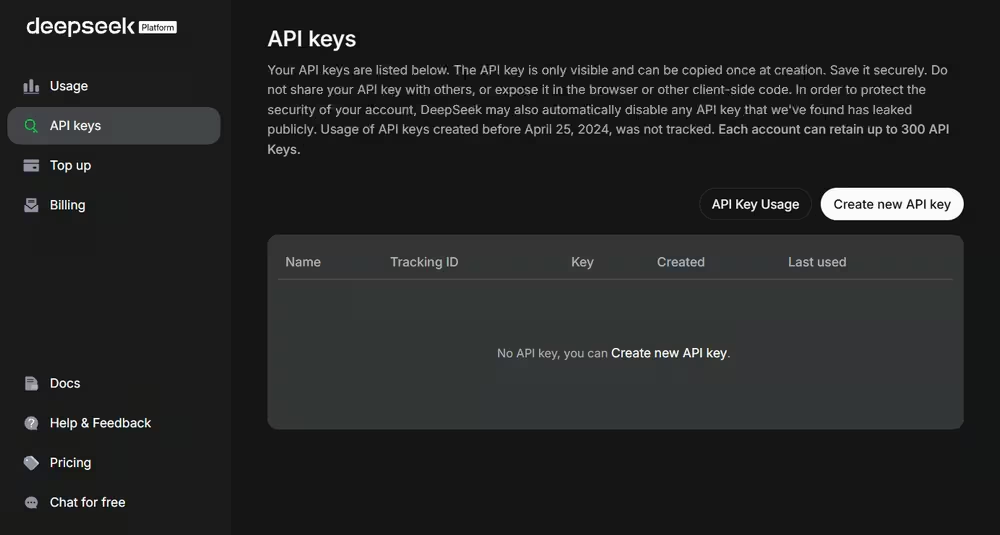
Click on the “API Keys” tab, then click on “Create new API Key”.
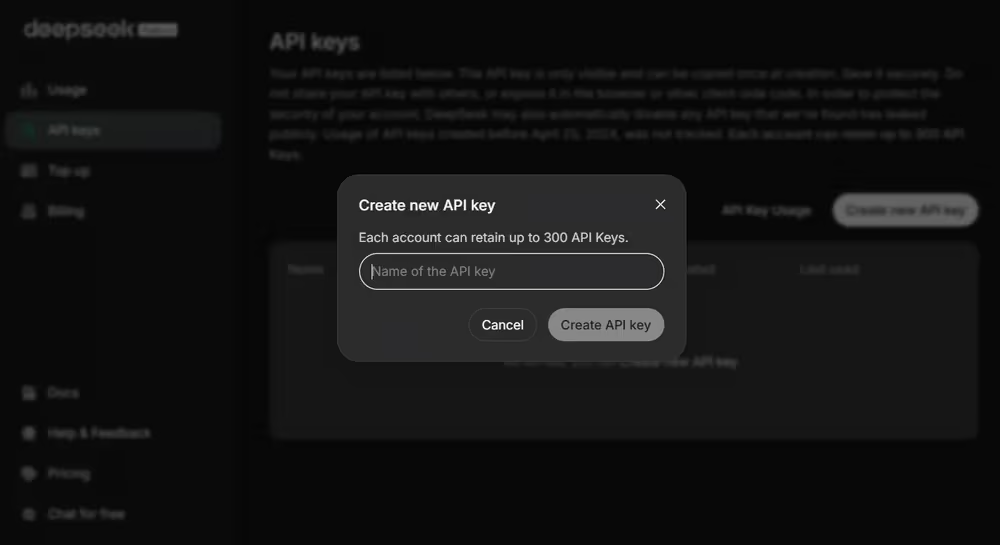
Give the API Key a name to help you recognize each of your APIs, in case you need to create more DeepSeek APIs in the future. Then click on “Create” to view and copy your API.
Remember, you have to save your API somewhere safe because it can only be shown to you once, after that you can’t view it again.
Now, go back to the DeepSeek Harness desktop app you launched, then click on “Add API Key”
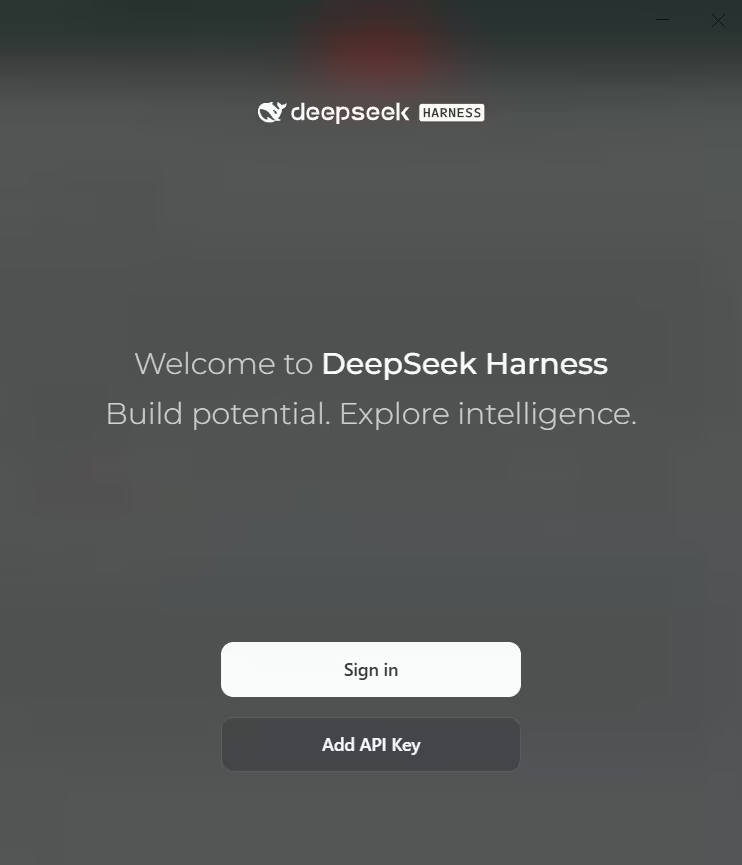
Paste the API key you created/copied from the DeepSeek API platform, then click on “Save and Continue”
The DeepSeek Harness AI dashboard should open
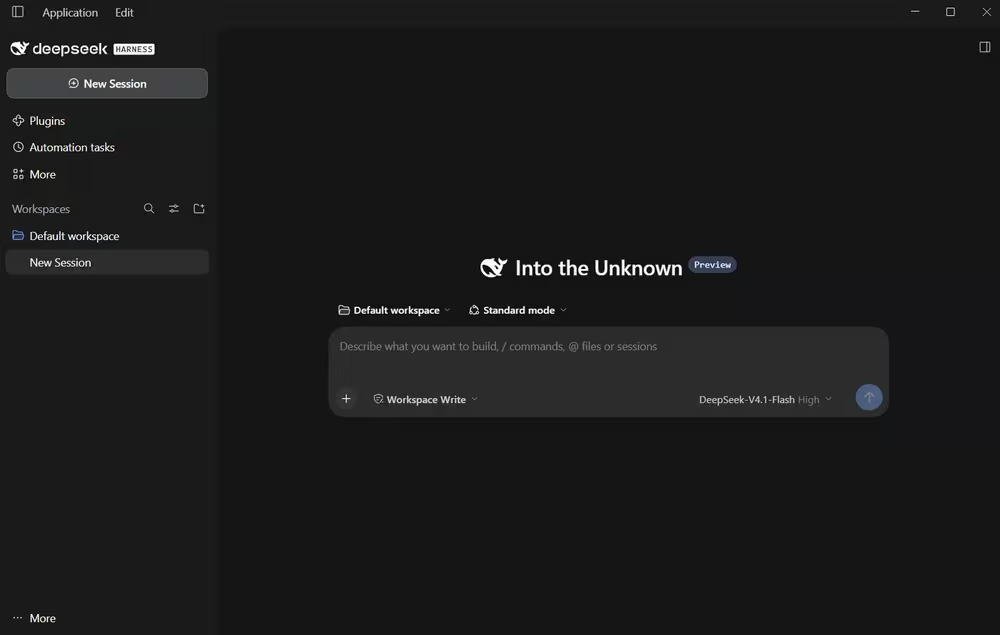
That is all about Logging into the DeepSeek Harness Ai application.
Setting Up DeepSeek Harmess AI
Now that you have completed this process, There are configurations you may want to adjust or set to get the best out of DeepSeek Harness AI.
The DeepSeek Harness is so simple to navigate. there are 3 main tabs you will need more frequently under the “Settings”; General, The Model, and The Plug-in.
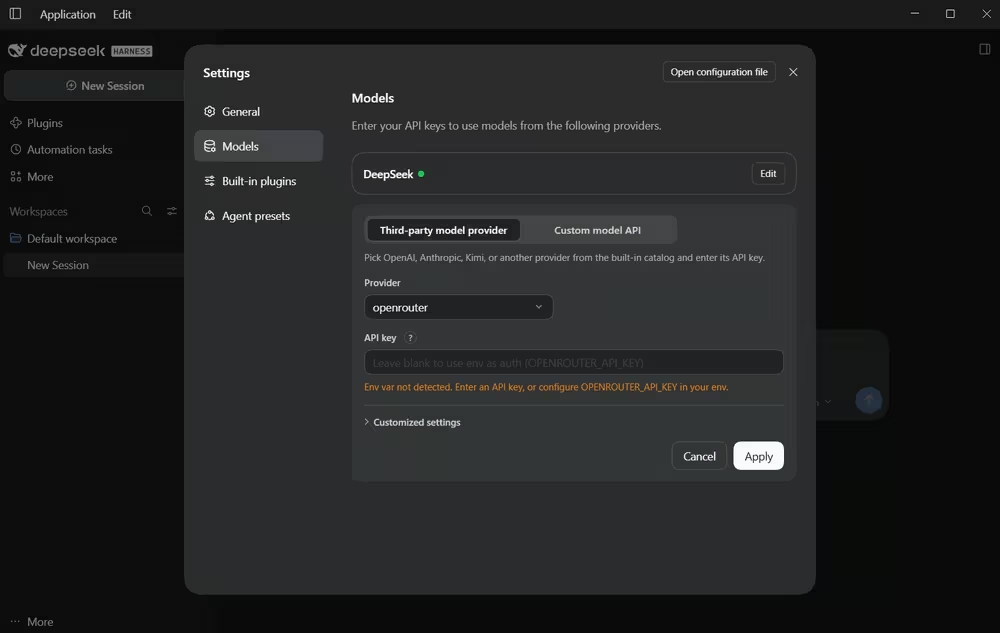
- Now let me open up settings, where under General you can change simple things like the theme and font size.
- See the Model is the brain that powers the DeepSeek Harness, because without it your desktop app won’t be productive. The “Models” tab is basically the list of brains that are connected to Harness, also from here you can add more models.
- Then there are built-in plugins, which are the skills it already comes with, and agent presets, which are like saved setups so you don’t have to set everything up again from scratch each time.
Now, you can start adding your AI models which could be paid models or models that won’t cost you a single dollar to use.